

Settings
The store-wide switches: what WooCommerce should stop showing, how your recommendations share a page, moving your setup between stores, your license, and what happens to your data if the plugin is deleted.
Most of what you do in Shaped Recommend happens inside a single Recommendation. Settings is for the handful of decisions that apply to every Recommendation at once. You'll visit it a few times when you set up, and rarely after that.
Recommend → Settings in the WordPress sidebar (or the Settings tab at the top of any Shaped Recommend screen). Five tabs run down the left:
| Tab | What it's for |
|---|---|
| General | Hide WooCommerce's own Related, Up-sell and Cross-sell sections |
| Recommendation Manager | Stop repeats, cap blocks per page and per visit, pick how competing blocks are settled |
| Export / Import | Download your setup as a .json file, or load one in |
| License | Upgrade prompt in Free; key activation in Pro |
| Advanced | What happens to your data if the plugin is deleted |
Each tab has its own address (&tab=general, &tab=recommendation_manager, &tab=export_import, &tab=license, &tab=advanced), so you can bookmark one or share a link straight to it.
Every change saves the moment you make it. There's no Save button to forget: a toast confirms the save, and if the server refuses a change, the control springs back to what's actually stored.
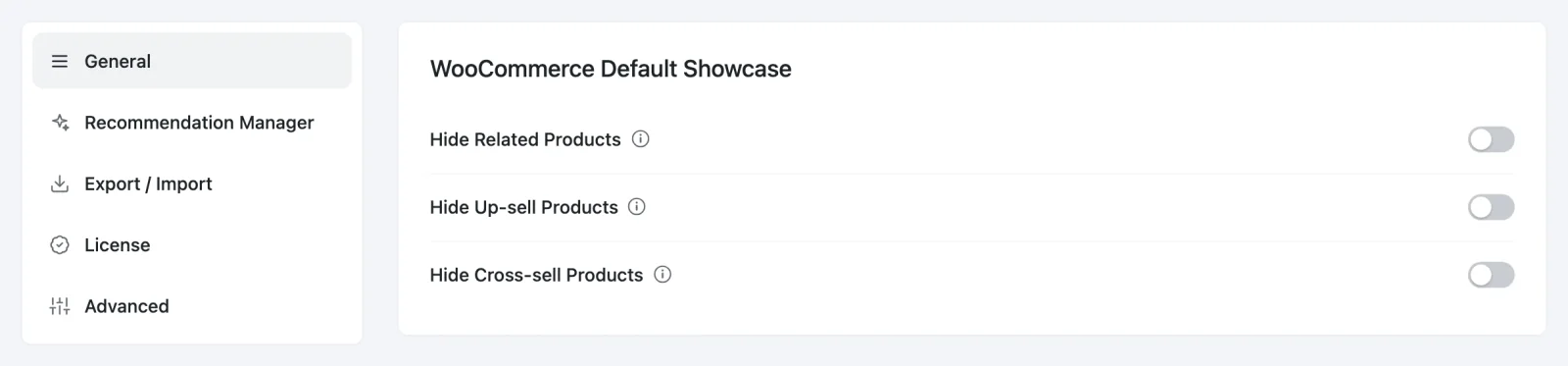
General
WooCommerce Default Showcase
WooCommerce draws its own product sections automatically: Related products under every product, Up-sells on the product page, and Cross-sells in the cart. Once you've built your own Recommendation for one of those spots, Woo's version sitting next to it is usually just noise — two rows saying almost the same thing.
These three switches turn Woo's sections off. All three are off by default.
| Switch | What it does (the tooltip on screen) |
|---|---|
| Hide Related Products | "Hide WooCommerce's automatic Related products showcase so it doesn't clash with your recommendation." |
| Hide Up-sell Products | "Hides WooCommerce's default up-sell showcase." |
| Hide Cross-sell Products | "Hides WooCommerce's default cross-sell showcase." Classic cart only — see below. |
Flipping one shows "Settings saved — storefront refreshed".
These hide Woo's section everywhere, unconditionally
A switch here removes Woo's section on every page of that kind, whether or not your own Recommendation shows up there. If one of your blocks is held back on a page (by a condition, or by the Recommendation Manager), that page shows nothing in the spot — Woo's section doesn't come back to fill the gap.
So turn a switch on once your replacement is live and covers the pages you care about. Hiding WooCommerce's Own Sections walks through it.
Hide Cross-sell Products covers both kinds of cart
It removes the cross-sell section from the classic cart and from WooCommerce's Cart block, the default on new stores.
Recommendation Manager
When several Recommendations want the same page, the Recommendation Manager decides which of them show. This tab is where you set its rules. The concepts behind it — and the full "why isn't my block showing?" checklist — are on their own page: The Recommendation Manager. Here's what's on the tab:
| Control | Default | What it does |
|---|---|---|
| No repeated products | Off | "Never show the same product twice on one page." |
| Limit blocks per page | Off | "Off shows every eligible recommendation. Turn on to cap how many render." Turning it on reveals Blocks per page, 1–10 (starts at 5). |
| Limit recommendations per session | Off | "Cap how many recommendation blocks a shopper sees per visit." Turning it on reveals Recommendations per session, 2–10 (starts at 5). |
| When Two Recommendations Compete for One Slot Pro | Priority | Priority, Highest Value or Best Converting. |
Every switch ships off, so a fresh store shows every eligible Recommendation until you decide to limit it. Each change shows "Recommendation Manager settings saved — storefront refreshed" and takes effect on the next page load.
The priority order isn't set here. With Priority selected, the tab says "The top recommendation wins. Set the order by dragging rows in the Recommendations list." and links you there with Set Order in Recommendations. Dragging rows is a Pro feature — see Recommendations List.
In Free, the winner control is visible but locked behind "Priority & Conflict Rules Are Pro — Control which recommendation wins when offers compete for the same slot." Free stores settle every collision by priority.
Highest Value and Best Converting don't change anything yet
In Pro you can select either one, and it saves. But the engine behind them isn't built in this release, so the storefront still settles every collision by priority. Leave this on Priority — it's what you're getting either way. The tooltip describes how the two will work once they ship (attributed revenue per view, or conversions per view, over the last 30 days).
Export / Import
Move your setup between stores — from staging to production, or from one client's site to the next — or keep a backup before a big change.
Export
- Under Export, choose All Recommendations or Specific Recommendations.
- If you chose specific, a Choose recommendations box appears. Click it and tick the ones you want; each shows up as a chip you can remove with its ×.
- Click Download .json Backup.
You'll get a file named sprcm-config-YYYY-MM-DD.json and the toast "Configuration exported". Choosing Specific Recommendations and picking none stops you with "Choose at least one recommendation to export."
The file is configuration only: your Recommendations (with their placements, conditions and display settings), your Recommendation Manager settings including the priority order, and the settings on this screen. It never carries analytics, shopper data or your license key — the key belongs to the site, not the setup.
Export straight from the list
You can also tick rows on the Recommendations list and click Export in the bulk bar. Same file, fewer clicks.
Import
- Under Import, pick a mode.
- Click Choose a .json file and select the file. The import starts as soon as you pick it.
| Mode | What it does |
|---|---|
| Add Alongside (default) | Adds what's in the file to what you already have. Nothing existing is touched. |
| Replace All | Wipes the existing data first, then imports. Shows the warning "Replace All wipes the selected data before importing. Export a backup first." |
Replace All needs full administrator permissions. Without them the option is locked, and clicking it tells you "Replacing everything needs full administrator permissions."
When it finishes you'll see "Configuration imported — storefront updated" and an Import report underneath: how many came in ("3 recommendations imported.") and a line for anything that couldn't be — a product ID that doesn't exist on this store, for example. Read that list before you assume everything arrived.
A bad file is refused, not half-applied
The import only accepts JSON, checks the file's version, and cleans every value before it saves anything. A malformed or tampered file is rejected with a report rather than partially applied. If your browser can't read the file at all, you'll see "Could not read that file."
License
In Free, this tab is an upgrade prompt:
You're on Shaped Recommend Free — "A license key activates Pro features, updates and support. Everything you have configured stays exactly as it is."
with a See Pro pricing button.
With Shaped Recommend Pro installed, the tab becomes the real license panel:
- Before activation: a License Key field and an Activate button, with a Where do I find my key? link.
- After activation: the field is replaced by your license's details — Product, the key (masked to its last four characters), Expires On (or Lifetime), Licensed To and Sites ("1 of 3 sites activated") — plus Refresh, Your Account, Get Support, Renew License and Deactivate License.
Activating or deactivating a key needs full administrator permissions.
In this release, a key buys updates and support — not the features
Pro's features unlock as soon as the Shaped Recommend Pro plugin is active, before you enter any key. Activating a license turns on automatic updates and support for the site. The panel says the same thing: an active license reads "Updates and priority support are enabled on this site.", and an expired one "Every feature keeps working. Updates and priority support have stopped until you renew." Deactivating releases the activation for another site and stops updates; your features and settings stay as they are.
Advanced
Clean-up Data on Deletion
Clean-up Data on Deletion — "Delete all plugin data when the plugin is removed."
This decides what happens if someone deletes Shaped Recommend from Plugins (deactivating never deletes anything).
- Off (default) — your Recommendations, analytics and settings stay in the database. Reinstall and everything is exactly where you left it.
- On — deleting the plugin erases all of it, permanently.
Off is the safe position, and it's the default on purpose: a plugin deleted by accident shouldn't take months of setup and sales history with it. Turning it on asks first:
Are You Sure? — "You'll lose every recommendation, its analytics and your settings if the plugin is ever removed — even by accident. Your WooCommerce orders are never touched. We recommend keeping this off."
Keep My Data backs out; Delete Anyway turns it on. Turning it back off doesn't ask.
Only turn it on when you're removing the plugin for good and want a clean database. It governs the Free plugin's data; deleting Shaped Recommend Pro on its own only removes Pro's license and scheduled jobs, never your Recommendations. Uninstalling & Data lists exactly what goes.
This switch needs full administrator permissions. A Shop manager sees it greyed out with "This control changes the whole store, so it needs full administrator permissions."
There's no kill switch
Earlier versions had an emergency stop on this tab. It's gone. To take Recommendations off the storefront:
- One at a time: click its Active pill on the Recommendations list to make it Inactive. Nothing is lost, and one click brings it back.
- All at once: deactivate Shaped Recommend under Plugins. Your data stays (unless Clean-up Data on Deletion is on and you then delete the plugin).
Statistics cache lifetime — no control
There's one store-wide setting with no control on any tab: how long figures worked out from your order history stay fresh. It's stored as stats_cache_hours, defaults to 24 hours, and accepts 1–168. It decides two things:
- how long a popularity ranking (the "best sellers"-style sorts) is kept before it's recalculated, and
- how often Pro's background pass re-mines your orders for Store Statistics.
The only way to change it is through the REST API. Ranking freshness follows a new value straight away. Pro's mining pass doesn't: it's scheduled once, with whatever the value was at that moment, so it keeps its old cadence until Shaped Recommend Pro is deactivated and reactivated. For nearly every store, 24 hours is right — and wp sprcm stats rebuild gets you fresh data on demand.
Who can change what
| Setting | Needs |
|---|---|
| WooCommerce Default Showcase | sprcm_manage_recommendations |
| Recommendation Manager controls | sprcm_manage_recommendations |
| Export, and Add Alongside import | sprcm_manage_recommendations |
| Replace All import | manage_options |
| License activate / deactivate Pro | manage_options |
| Clean-up Data on Deletion | manage_options |
Administrator and Shop manager both get sprcm_manage_recommendations (and sprcm_view_analytics) when the plugin is activated. Only Administrator has manage_options. A refused change never pretends to succeed — the control snaps back and you'll see "That setting needs full administrator permissions."
What's not here
- AI provider settings. Recommendations come from your rules or your order history; there's no AI selection method, so nothing to configure.
- A store-wide stop switch. See above.