

Setup
Where the block shows, and which products it picks. This is the reference page for pages, positions, filters and sorting — other pages link back here.
The Setup tab answers two questions. First: which page is this block for, and where on that page does it sit? Second: out of everything in my catalogue, which products belong in it, and which goes first?
Most Recommendations only need the first three controls — Show On, Position On Page and How Products Are Chosen. Everything below them is there when you want more control.
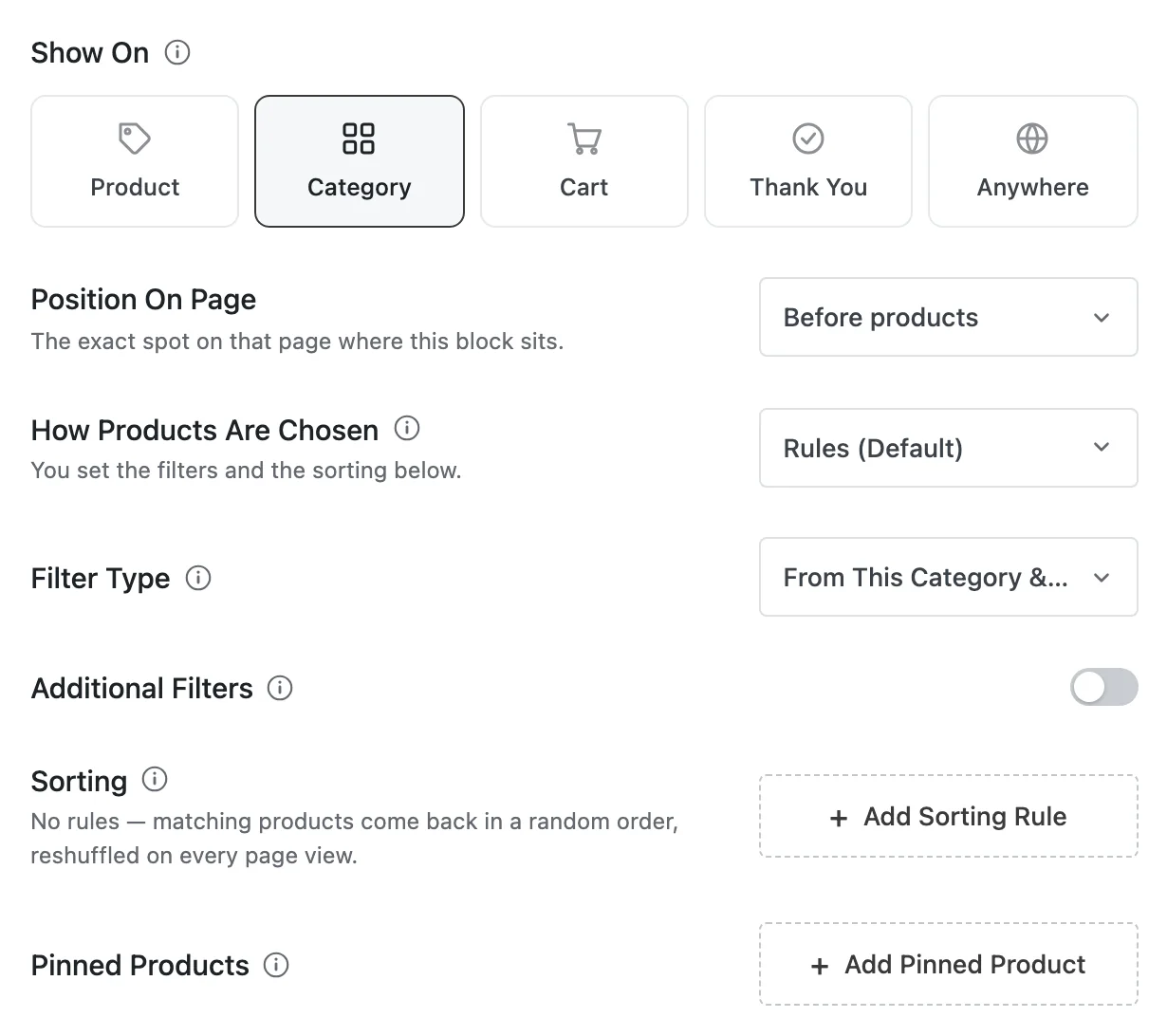
Show On
"The page a shopper is on when this block shows — the anchor it reasons from."
This is the first decision because everything else depends on it. A Cart Recommendation reads what's in the cart; a Product one reads the product being viewed. That's what lets a block say "pairs with this".
| Show On | Reads | Tier |
|---|---|---|
| Product | The product being viewed | Free · default |
| Category | The category or tag archive being viewed | Free |
| Cart | What's in the cart right now | Free |
| Thank You | The order that was just placed | Pro |
| Anywhere | Your whole catalogue, not tied to any page | Pro |
In the free plugin, Thank You and Anywhere show with a Pro badge; clicking one explains what Pro adds rather than selecting it.
Because Show On decides what's possible, some later options only exist for some pages. A Cart block can't use Relative Price ("cheaper than the viewed product") because there is no viewed product; a Category or Anywhere block can't sort by Frequently Bought Together because there's no single product to be "bought together with". Options that don't fit are greyed out with "Not available on this page."
Changing it later
You can. Anything the new page can't support — filters, sorting rules, display conditions — is removed, and a message tells you how many: "Show On changed — 2 settings no longer applied and were removed." If the current position doesn't exist on the new page, it moves to that page's natural spot: Product → After tabs, Category → Before products, Cart → After totals, Thank You → After details.
On an Active Recommendation it confirms first, because the change reaches your storefront on the next save — see The Builder.
Why settings are removed, not hidden
A filter you can no longer see must never keep narrowing your results. Leaving stale rows in place is how a block ends up mysteriously empty, so the plugin removes them and tells you.
Position On Page
"The exact spot on that page where this block sits."
Positions are grouped by page, and only the ones your Show On page can serve are selectable — the rest are greyed out with "not available on this page", so you can see what another choice would give you.
| Page | Positions | Show On | Tier |
|---|---|---|---|
| Product page | After tabs · Before tabs · After meta | Product | Free |
| Product page | After add-to-cart | Product | Pro |
| Category / Tag | Before products · After products | Category | Free |
| Cart | Before table · After totals · Empty cart | Cart | Free |
| Checkout | Before form · After place order | Cart | Pro |
| Thank-you | Before details · After details | Thank You | Pro |
| Custom placement | Shortcode | any | Free |
| Custom placement | Block | any except Anywhere | Free |
The checkout positions belong to the Cart page because the checkout still reads the cart. What each position looks like on a real page: Locations.
Anywhere has no page of its own, so there's nothing to choose — the builder hides the dropdown and tells you "This recommendation has no page of its own, so it is placed by shortcode."
Popups don't have a position either. Pick the Popup display on the Design tab and this row disappears; the popup's trigger decides when it opens instead.
Custom placements
Choose Shortcode and you get "Paste this shortcode anywhere" with the shortcode and a Copy button. A brand-new Recommendation doesn't have an ID yet, so until you save it once you'll see "Save this recommendation once and its shortcode appears here."
Choose Block and you get the steps: "In any page or post, click + and search for the Shaped Recommend block, then pick a recommendation from its dropdown."
Both are covered in Shortcode & Block.
Replacing WooCommerce's own section
Three positions sit exactly where WooCommerce already shows its own recommendations:
| Position | WooCommerce's section there |
|---|---|
| Product page · After tabs | Related products |
| Product page · After meta | Up-sells |
| Cart · After totals | Cross-sells |
Putting your block there does not switch WooCommerce's section off by itself, so out of the box you'll see both. To show only yours, go to Settings → General → WooCommerce Default Showcase and turn on Hide Related Products, Hide Up-sell Products or Hide Cross-sell Products. Those switches apply to your whole store. Replacing Woo Slots explains the details.
How Products Are Chosen
"How the plugin picks the products this block shows." Two options.
Rules (Default)
"You set the filters and the sorting below." Free, and the default. You decide which products qualify with filters and what order they appear in with sorting. It's predictable, easy to explain, and works on a store with no sales history at all.
Store Statistics Pro
"Mined from your real orders. Filters below still narrow the result." Products come from what shoppers have actually bought together in your store. Two settings appear:
| Setting | Options | Default | What it means |
|---|---|---|---|
| Order History Window | Last 7 Days · Last 14 Days · Last 30 Days · Last 90 Days · Last 6 Months · Last 12 Months · All Time | Last 90 Days | "Which past orders to learn from." |
| Minimum Co-Purchases | Any · 5+ Orders · 10+ Orders · 20+ Orders · Custom | 10+ Orders | "How often products must be bought together" before a pair counts. Custom opens a field for any other number. |
Higher minimums mean fewer pairs you can trust more. On a store with modest sales, 10+ Orders over 90 days can be too strict — try 5+ Orders before you widen the window. Choosing Any doesn't switch the minimum off entirely: the plugin keeps a small built-in floor so a handful of orders can't produce confident nonsense, and your setting can only raise it.
The panel always carries this note: "New store? Store Statistics needs order history, so until enough data builds up it falls back to category & popularity." That's exactly what happens — see Store Statistics.
Store Statistics has no sorting rules
It orders products by how often they're bought together, so the Sorting section just says "Store Statistics orders by what shoppers actually buy together, so there are no sorting rules to set." Switching to Store Statistics clears any sorting rules you'd added.
Filters — which products qualify
The Filter Type dropdown has two settings.
Automatic (the default)
The first option is named after what it does on your chosen page:
| Show On | Automatic matching |
|---|---|
| Product | Same Category & Tags |
| Category | From This Category & Tags |
| Cart | Pairs With The Cart |
| Thank You | Complements The Order |
| Anywhere | Best-sellers |
You can narrow that further with the Additional Filters switch — "Narrow Same Category & Tags even further with your own filters." So "Same Category & Tags, and on sale, and in stock" is a perfectly good setup.
In automatic mode the Category, Tag, Brand and Attribute filters aren't offered, because the automatic matching already uses your categories and tags.
Turn Additional Filters off and your extra rows are hidden; they're deleted when you save with the switch still off.
Choose Specific Filters
You build the list of qualifying products yourself. Nothing is matched automatically — only products that pass your filters are considered. Click Add Filter and pick from four groups: Taxonomy, Product state, Price and rating and Shopper behaviour.
With specific filters you need at least one filter row or one pinned product — otherwise there's nothing to show, and the Recommendation can't go live.
Switching from specific filters back to automatic removes any Category, Tag, Brand or Attribute rows, since automatic mode doesn't offer them.
The thirteen filters
| Filter | Choices | Notes | Tier |
|---|---|---|---|
| Category | Is Any Of · Is None Of · All | Your store's own categories | Free |
| Tag | Is Any Of · Is None Of · All | Your store's own tags | Free |
| On Sale | Yes · No | Free | |
| In Stock | Yes · No | Free | |
| Featured | Yes · No | WooCommerce's own "featured" star | Free |
| Price | Is Under · Is Over · Is Between | In your store's currency. Starts at Is Between 10 and 100 | Free |
| Brand | Is Any Of · Is None Of · All | Only offered if your store has a brand taxonomy (WooCommerce Brands) | Pro |
| Attribute | Is Any Of · Is None Of · All | Pick the attribute (Colour, Size…), then its values. Only offered if your store has global attributes | Pro |
| Min Rating | At least 1 ★ to 5 ★, in half stars | Starts at 4 ★ | Pro |
| Relative Price | Cheaper Than Viewed · Similar To Viewed · Pricier Than Viewed | A multiplier "of the viewed product's price", 1 or more. Starts at Similar To Viewed × 1.2. Product page only | Pro |
| Recently Viewed | Yes · No | The shopper's own recently viewed products. Not on Thank You | Pro |
| Exclude Cart Items | Yes · No | Don't recommend what's already in the cart. Product and Cart only | Pro |
| Exclude Purchased | Yes · No | Don't recommend what this order already contains. Thank You only | Pro |
A few things worth knowing:
- Each filter can be used once per Recommendation (Attribute: once per attribute). If you need more values, add them to the existing row.
- Filters that don't fit your page are greyed out with "Not available on this page." Pro filters in the free plugin show a Pro badge and explain what Pro adds when clicked.
- "All" is a real choice, not a shortcut. All Categories means "any category" — so a category you add to your store next month qualifies automatically, because the row doesn't list today's categories.
- Min Rating starts at 1 star, not 0, because "at least 0 stars" matches everything and would be a filter that does nothing.
How filters combine
Filters are arranged in groups:
- Between groups: AND. Every group must pass. Click Add AND Group to add one.
- Inside a group: OR. Any one row in the group is enough. Click Add OR Condition under a group to add an alternative. Pro
So (Category Is Any Of Beans, Mugs) AND (Price Is Under 30) means "beans or mugs, under thirty". And (On Sale: Yes OR Featured: Yes) AND (In Stock: Yes) means "anything on sale or featured, as long as it's in stock".
In the free plugin every filter row is its own group, so all rows must pass. Values inside one row (several categories, say) always mean "any of these", in both versions.
There's one limit on OR groups: multiplied out, they can't describe more than 16 combinations (for example, four groups of two rows each is 2 × 2 × 2 × 2 = 16). Past that, saving is refused and you'll be asked to simplify.
Sorting — the order products appear in
"The order matching products come back in. Every rule counts the same and they combine into one order."
Only shown with Rules. Click Add Sorting Rule and pick from the list; each rule then has one setting you can change.
| Sort rule | What it ranks by | Setting | Default | Tier |
|---|---|---|---|---|
| Frequently Bought Together | "Products often purchased together, mined from your real order history." | Based on orders from | Last 90 Days | Free |
| Others Also Bought | "Commonly bought later by the same customers." | Based on orders from | Last 90 Days | Pro |
| Popularity | "Best-sellers over a recent time window." | Popularity window | Last 30 Days | Free |
| Rating | "Highest customer-rated products first." | Minimum reviews — Any, 5+, 25+, 100+ or Custom | 5+ | Pro |
| Price | "Order by product price (high or low)." | Direction — Low To High / High To Low | Low To High | Free |
| Freshness | "Newest products first." | Added within (up to Any Time) | Last 30 Days | Pro |
| Conversion Rate | "Products this plugin converts best, from its own data." | Measured over | Last 30 Days | Pro |
The time windows run from Last 7 Days to All Time. Frequently Bought Together is free, always.
How several rules combine
There are no weights. Every rule you add counts equally, and the plugin blends them into one order. Each rule places every product somewhere from best to worst, and those positions are added up.
That's useful in practice: add Rating and Popularity together, and a product with no reviews yet isn't dumped at the bottom — it gets a neutral position on the rating rule and is ordered sensibly by popularity instead.
- A rule with no data contributes nothing. A brand-new store with no orders doesn't zero out your block; the other rules decide.
- Some rules need a single product to compare with. Frequently Bought Together and Others Also Bought aren't available for Category or Anywhere.
- Each rule can be added once. A rule already in the list isn't offered again.
With no sorting rules
The Sorting row tells you what happens: "No rules — matching products come back in a random order, reshuffled on every page view." That's deliberate — it keeps a block from showing the same four products forever. If you want a stable order, add a rule. (The one exception: an Anywhere block in automatic mode returns best sellers first.)
Include WooCommerce's hand-picked products Pro
On a Product page you'll see "Include the Manually Added Up-sell Products"; on a Cart, "Include the Manually Added Cross-sell Products". The idea: pull in the up-sells or cross-sells you chose by hand on the WooCommerce product screen, show them first, then let this Recommendation fill the rest.
Not working yet in this release
The switch saves correctly, but nothing on the storefront reads it yet, so turning it on doesn't currently change what appears. Tracked in Free vs Pro.
If what you actually want is "my block instead of WooCommerce's", use the WooCommerce Default Showcase switches in Settings — see Replacing WooCommerce's own section.
Pinned Products
Pinned products always appear first, in the order you set. Click Add Pinned Product, search, and add. Reorder by dragging, or with the Move up / Move down buttons.
The tooltip sums up the rules: "Pinned products render first, in this order; the engine fills the rest. They skip the filters — but never the caps." In detail:
- Pins skip your filters. A pinned product shows even if it wouldn't pass a single filter row. That's what pinning is for.
- Pins don't skip the product limit. If your block shows four products and you pin six, four show, and the builder warns you: "4 of 6 pins will show — the rest are past this block's product cap."
- Pins go first; the rest is filled for you. Three pins in a four-product block means the plugin picks the fourth.
- Pins work with Store Statistics too. They go ahead of whatever the statistics produce.
- A product is never recommended on its own page. Pin a product, and it won't appear when a shopper is already viewing that product.
- Pins still go through the Recommendation Manager. If you've turned on No repeated products there, a pinned product already shown by another block on the same page is removed as a duplicate. Pins override your filters, not your store-wide rules.
Repeated products
Out of the box, two blocks on the same page are allowed to show the same product. If you'd rather a shopper never sees a product twice on one page, turn on No repeated products — "Never show the same product twice on one page." — under Settings → Recommendation Manager. It applies to every Recommendation at once; there's no per-Recommendation switch.
The trade-off: on a small catalogue, with No repeated products on, a block lower down the page can end up with fewer products than you asked for, or be hidden entirely. The Recommendation Manager page explains how blocks share a page.
Next
- Design — display style, heading, columns.
- Store Statistics — how the order mining works.
- Recommendation Manager — why a block sometimes shows fewer products than you set.