

Recommendations List
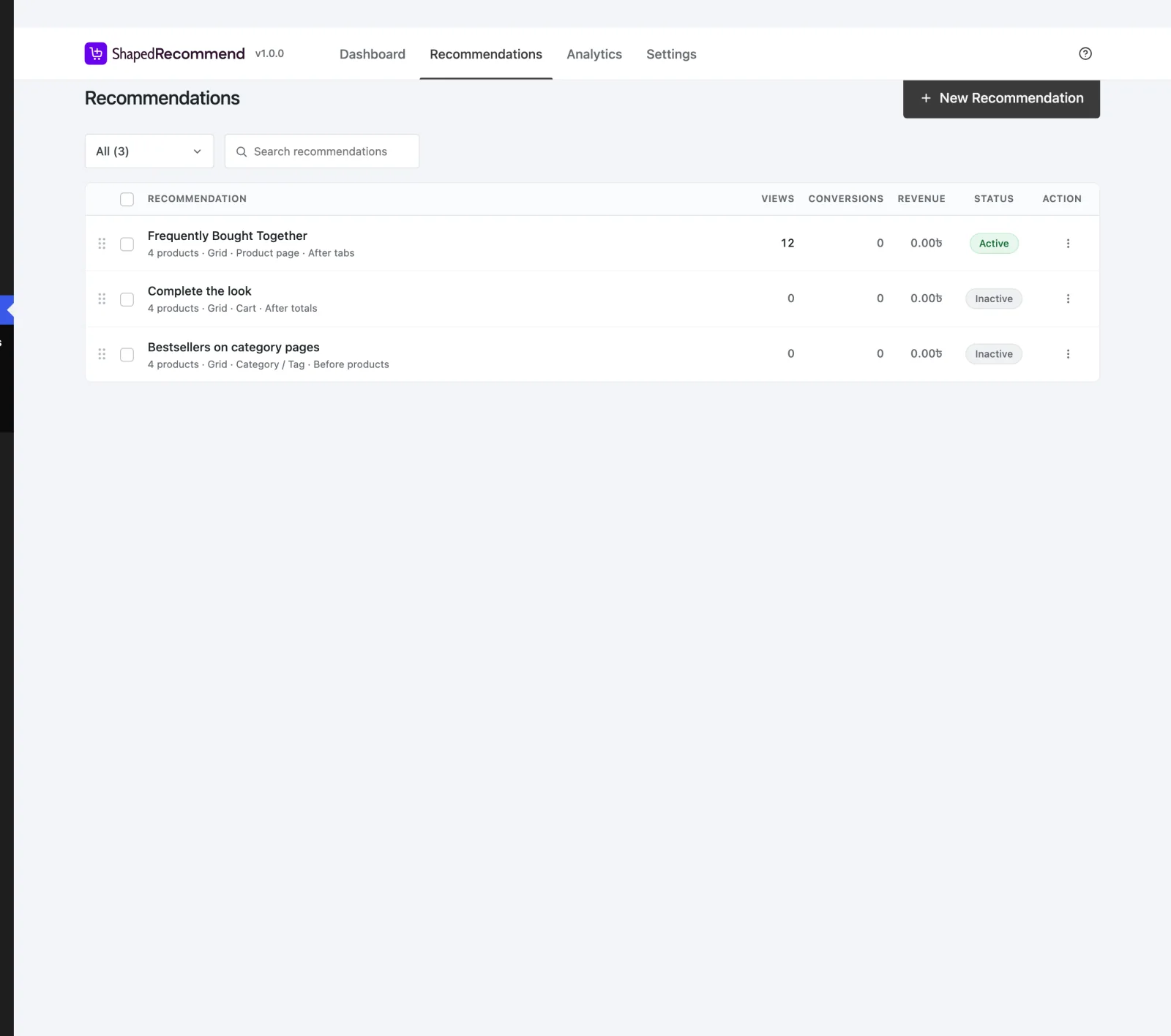
Every Recommendation you've built, how each one is doing, and the everyday actions — switch on, switch off, copy, delete — without opening the builder.
Recommend → All Recommendations in the WordPress sidebar, or the Recommendations tab at the top of any Shaped Recommend screen.
This is the screen you'll come back to most. Use it to see what's running, flip something off while you think about it, or copy a Recommendation that works so you can try a variation.
Finding a Recommendation
- Status filter — a dropdown with a count beside each choice: All, Active, Inactive.
- Search — Search recommendations matches on the name as you type.
If nothing matches: "Nothing matches that. Try a different search or status."
What a row tells you
| Column | What it shows |
|---|---|
| ☐ | A checkbox for bulk actions |
| Recommendation | The name, and under it a one-line summary: "4 products · Grid · Product page · After tabs". A Recommendation that picks products from your order history carries a Statistics tag beside its name; rules-based ones carry none, because rules are the norm. |
| Views · Conversions · Revenue | Real, measured figures. Zeros are shown faded. |
| Status | The Active / Inactive pill — which is also the on/off switch — and sometimes a Limit reached chip |
| Action | The ⋮ menu: Edit, Duplicate, Delete (and Move up / Move down in Pro) |
Click anywhere on a row (other than a control) to open it in the builder.
Statuses
| Status | Means | Shows on the storefront? |
|---|---|---|
| Active | Switched on | Yes, wherever its placement and conditions allow |
| Inactive | Switched off. Its setup is kept exactly as it is | No |
| Limit reached | Active, but a limit you set held it back recently | Not every time |
Limit reached isn't something you set — the plugin works it out from what just happened on your storefront. It appears when, within the last day, one of your two Recommendation Manager limits stopped the block from showing:
- Limit blocks per page — "Your limit of 2 recommendation blocks per page held this back on a recent page view. Change it in Settings ▸ Recommendation Manager."
- Limit recommendations per session — "Your limit of 5 offers per visit held this back for a recent shopper. Change it in Settings ▸ Recommendation Manager."
Hover the help icon beside the chip to see which one, with your current number. The chip clears as soon as the block shows again, so raising the limit makes it disappear on the next page view.
Seeing Limit reached on a block you expected to see isn't a bug — it's the answer. Other reasons a block can be held back (a condition that didn't match, losing its slot to another Recommendation, the no-repeats rule) don't use this chip; Why isn't my block showing? walks through all of them.
The figures are real
Views, Conversions and Revenue come from logged events — never placeholders. An active Recommendation that hasn't been seen yet shows true zeros, which is a useful fact in itself.
If your account can manage Recommendations but isn't allowed to see analytics, the figures show as — instead of zero. "Not measured" and "not allowed to see" stay different answers.
Switching one on or off
Click the status pill. Hover it first and it tells you what will happen: "Click to deactivate" or "Click to activate".
- Deactivating is instant: "Recommendation deactivated — storefront refreshed". Everything about it is kept, so this is the right way to take something down for a while.
- Activating runs a quick completeness check first. If something's missing — no placement, say — it stays Inactive and tells you what to fix: "Still inactive — to activate, fix this: …". Otherwise: "Recommendation activated — storefront refreshed".
Either way, the very next storefront page load reflects the change.
The ⋮ menu
Edit
Opens the builder, same as clicking the row.
Duplicate
Copies the Recommendation with its placements and conditions. The copy is called "{name} (copy)" and starts Inactive — "Recommendation duplicated — saved as inactive" — so you never end up with two copies of the same block on your storefront by accident. The copy also gets its own analytics, separate from the original's.
It's the fastest way to test a variation: duplicate, change one thing, then switch the copy on and the original off.
Delete
Asks first, because it can't be undone:
Delete recommendation? "“{name}” will be permanently removed from your store and will stop showing to customers. This can't be undone."
Confirm and you'll see "1 recommendation deleted — storefront refreshed".
Deactivate instead of deleting
An Inactive Recommendation costs nothing and keeps both its setup and its history. Delete when you're sure; deactivate while you're deciding.
Revenue a deleted Recommendation earned stays in Analytics, labelled (deleted), because the money was real. Its setup, though, is gone for good.
Bulk actions
Tick the checkboxes on the rows you want (the one in the header selects everything currently shown). A bar appears with "3 selected", a Clear link, and two actions:
- Export — downloads those Recommendations as a
.jsonfile, exactly like Settings → Export / Import with Specific Recommendations. - Delete — asks "Delete 3 recommendations?" first, then removes them all.
Setting the priority order Pro
When two Recommendations compete for the same spot on a page, the one higher in the priority order wins. In Pro, this list is that order — top row wins — and you set it by dragging.
- Grab a row by the grip (⋮⋮) on its left and drop it where you want it. You'll see "Order updated".
- From the keyboard, use Move up / Move down in the row's ⋮ menu.
Reordering only works while the whole list is showing — status filter on All and the search box empty. In a filtered view the grips disappear, because dropping a row between two visible rows could quietly jump it past ones you can't see.
In Free, there's no grip: the list is simply newest first, and you can't change the priority order. How collisions are settled is explained in The Recommendation Manager.
Creating a Recommendation
Every route opens the same Create a Recommendation window — "Start from a proven template, or build one from scratch.":
- New Recommendation at the top right of this screen
- Recommend → New Recommend in the WordPress sidebar
- Create Recommendation on the Dashboard
Start From Scratch is inside that window, so there's no separate blank-builder route. See Starting Templates.
When the list is empty
No Recommendations Yet — "Create your first recommendation to start showing shoppers products they're likely to buy."
Create Your First Recommendation → opens the template picker.
Next
- The Builder — what Edit opens.
- The Recommendation Manager — the limits behind Limit reached, and how priority works.
- Analytics — the fuller picture behind the figures here.