

Creating a Recommendation
Every new Recommendation starts in the same place: a window of ready-made templates, plus a blank option. A template only pre-fills the builder — you can change everything before you save.
Opening the "Create a Recommendation" window
However you start, you land on the same window, titled Create a Recommendation — "Start from a proven template, or build one from scratch." You can open it from:
- Recommend → New Recommend in the WordPress sidebar,
- Create a Recommendation (or Create Recommendation) on the Dashboard,
- New Recommendation at the top of All Recommendations, or Create Your First Recommendation when the list is empty.
There's no other, blanker way in. Close the window (the ✕ or Esc) and nothing is created.
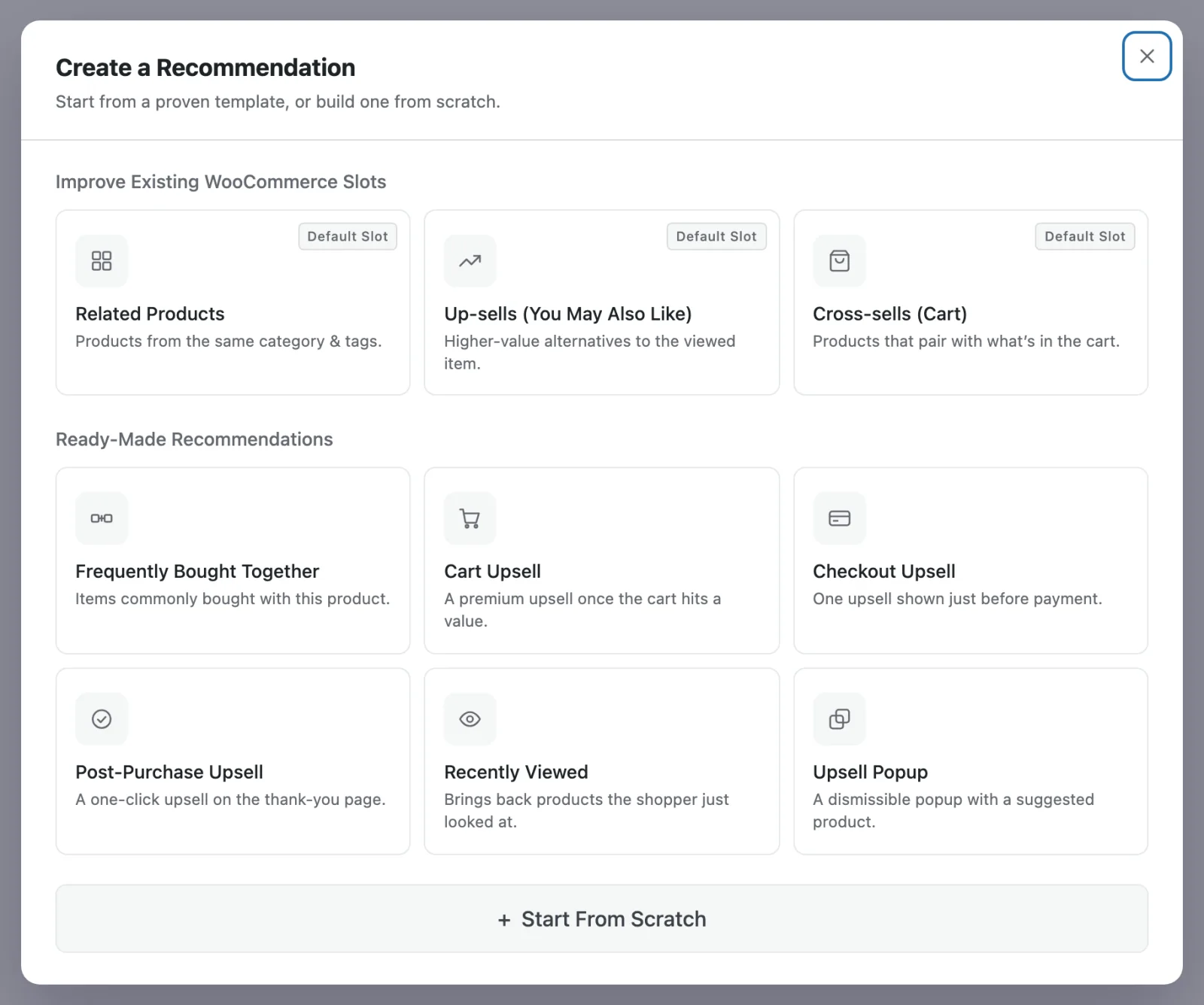
The window has two groups of cards and a Start From Scratch button at the bottom:
| Group | Cards |
|---|---|
| Improve Existing WooCommerce Slots | Related Products · Up-sells (You May Also Like) · Cross-sells (Cart) |
| Ready-Made Recommendations | Frequently Bought Together · Cart Upsell Pro · Checkout Upsell Pro · Post-Purchase Upsell Pro · Recently Viewed Pro · Upsell Popup Pro |
In the free plugin, Pro cards show a Pro badge. Clicking one explains what Pro adds rather than opening the builder.
What a template actually is
A pre-fill. Choosing a card opens the builder with settings already filled in — page, position, display style, heading, sometimes a sorting rule or a display condition — and a message: "Preset loaded — review and go live". That's the intended workflow, in five words.
- Every field stays editable. Nothing is locked because a template set it.
- There's nothing special about it afterwards. A Recommendation made from a template works exactly like one you built by hand.
- Nothing is saved yet. The Recommendation only exists once you press Save Changes — and a new Recommendation goes Active when you save it, if it's complete. See Saving.
Group A: Improve Existing WooCommerce Slots
These three put your block exactly where WooCommerce already shows its own recommendations, and each card carries a Default Slot badge to say so.
WooCommerce's own section doesn't switch off by itself
A Group A template places your block in WooCommerce's spot, but WooCommerce keeps showing its own section too until you hide it. Go to Settings → General → WooCommerce Default Showcase and turn on the matching switch — Hide Related Products, Hide Up-sell Products or Hide Cross-sell Products. See Replacing Woo Slots.
Related Products
"Products from the same category & tags."
| Show On | Product |
| How Products Are Chosen | Rules |
| Filters | Automatic — Same Category & Tags |
| Sorting | None (random order, reshuffled on each page view) |
| Position On Page | Product page · After tabs |
| Display | Grid |
| Heading | "Related products" |
| Default Slot | WooCommerce's Related products |
| Tier | Free |
The most common first Recommendation, and the one the Quick Start uses. It starts with no sorting rules, so the order changes on every page view — add a sorting rule such as Popularity if you'd like a steady order.
Up-sells (You May Also Like)
"Higher-value alternatives to the viewed item."
| Show On | Product |
| How Products Are Chosen | Rules — Store Statistics when Pro is active |
| Position On Page | Product page · After meta |
| Display | Grid |
| Heading | "You may also like" |
| Default Slot | WooCommerce's Up-sells |
| Tier | Free |
It sits high on the product page, right under the price and add-to-cart area, which suits a "better version of this" offer more than an accessory.
Cross-sells (Cart)
"Products that pair with what's in the cart."
| Show On | Cart |
| How Products Are Chosen | Rules, sorted by Frequently Bought Together — Store Statistics when Pro is active |
| Position On Page | Cart · After totals |
| Display | Inline list |
| Heading | "You may be interested in…" |
| Default Slot | WooCommerce's Cross-sells |
| Tier | Free |
A list rather than a grid, because the cart page is narrow and a shopper there is scanning, not browsing.
Group B: Ready-Made Recommendations
These add a block where WooCommerce doesn't put one.
Frequently Bought Together
"Items commonly bought with this product."
| Free | Pro | |
|---|---|---|
| Show On | Product | Product |
| How Products Are Chosen | Rules, sorted by Frequently Bought Together | Store Statistics |
| Position On Page | Product page · After tabs | Product page · After add-to-cart |
| Display | Grid | Bundle box |
| Heading | "Frequently bought together" | "Frequently bought together" |
Frequently Bought Together is free — always. The template and the sort are never locked. What Pro changes is the shape of the offer: a bundle box right beside the add-to-cart button, with a combined total and one button, rather than a grid further down the page.
Cart Upsell Pro
"A premium upsell once the cart hits a value."
| Show On | Cart |
| How Products Are Chosen | Rules, sorted by Others Also Bought |
| Position On Page | Cart · After totals |
| Display | Inline list |
| Heading | "Complete your setup" |
| Display Conditions | Cart Total Is Over 40 |
The condition is the point: shoppers who've already committed 40 are the ones worth asking for more. Change the amount on the Display Conditions tab to suit your average order.
Checkout Upsell Pro
"One upsell shown just before payment."
| Show On | Cart |
| How Products Are Chosen | Rules, sorted by Frequently Bought Together |
| Position On Page | Checkout · Before form |
| Display | Single-offer card |
| Heading | "Add this before you pay?" |
| Products to Show | 1 |
One product, one decision, at the last moment before payment.
Post-Purchase Upsell Pro
"A one-click upsell on the thank-you page."
| Show On | Thank You |
| How Products Are Chosen | Rules, sorted by Frequently Bought Together |
| Position On Page | Thank-you · After details |
| Display | Single-offer card |
| Heading | "One more thing before you go" |
| Products to Show | 1 |
| Display Conditions | Order Total Is Over 30 |
The order has gone through and the shopper is still on your site. One product, one decision — Yes, add it or No thanks.
Recently Viewed Pro
"Brings back products the shopper just looked at."
| Show On | Anywhere |
| How Products Are Chosen | Rules, with the Recently Viewed filter |
| Position On Page | Custom placement · Shortcode |
| Display | Grid |
| Heading | "Recently viewed" |
Because Anywhere isn't tied to one page, this one is placed with a shortcode: save it, copy the shortcode from the Setup tab, and paste it wherever you want it. See Shortcode & Block.
Upsell Popup Pro
"A dismissible popup with a suggested product."
| Show On | Cart |
| How Products Are Chosen | Rules, sorted by Frequently Bought Together |
| Display | Popup |
| Trigger Event | On Exit Intent |
| Fires On | Checkout |
| Heading | "Wait — add this?" |
| Products to Show | 1 |
A last offer when a shopper on the checkout page looks like they're about to leave. Popup settings are explained on Design.
Start From Scratch
The wide button at the bottom of the window. The builder opens with these defaults:
| Field | Default |
|---|---|
| Name | "Untitled recommendation" |
| Show On | Product |
| How Products Are Chosen | Rules |
| Filters | Automatic — Same Category & Tags, no additional filters |
| Sorting | None |
| Position On Page | Product page · After tabs |
| Display | Grid, 4 products, 4 / 3 / 2 columns |
| Heading | "You may also like" |
| Display Conditions | Off — always shown |
| Pinned products | None |
In other words, a blank Recommendation is very close to the Related Products template with a different heading. Use it when you know exactly what you're building.
Templates adapt to your plan
The same card can pre-fill a stronger setup when Pro is active. Up-sells, Cross-sells and Frequently Bought Together start on Store Statistics with Pro and on Rules without it, and Frequently Bought Together becomes a bundle box beside the add-to-cart button.
Nothing is held back from you: the card is the same, and the pre-fill is the best version your store can currently run.
Next
- The Builder — where the template lands.
- Setup — the first tab.
- Replacing Woo Slots — hiding WooCommerce's own sections.