

Quick Start
From a fresh install to a live recommendation on your product pages in about a minute, with no settings tour first.
You've installed and activated Shaped Recommend. This is the shortest honest route to something working. It uses a starting template, so you can see a result before you've had to make a single decision.
Before you begin
You need two things, and both are quick:
- [ ] Some published products. If there's nothing to recommend, the block shows nothing. That's by design, not a bug. Four or five published products is enough to see it working.
- [ ] A product page you can open afterwards to check the result. Any one will do.
Step 1: Open the template picker
In the WordPress sidebar, click Recommend → New Recommend. On a brand-new install, the Create a Recommendation button on the Dashboard does the same thing.
You'll see the Create a Recommendation window: Start from a proven template, or build one from scratch. The templates come in two groups, Improve Existing WooCommerce Slots and Ready-Made Recommendations, with Start From Scratch at the bottom.
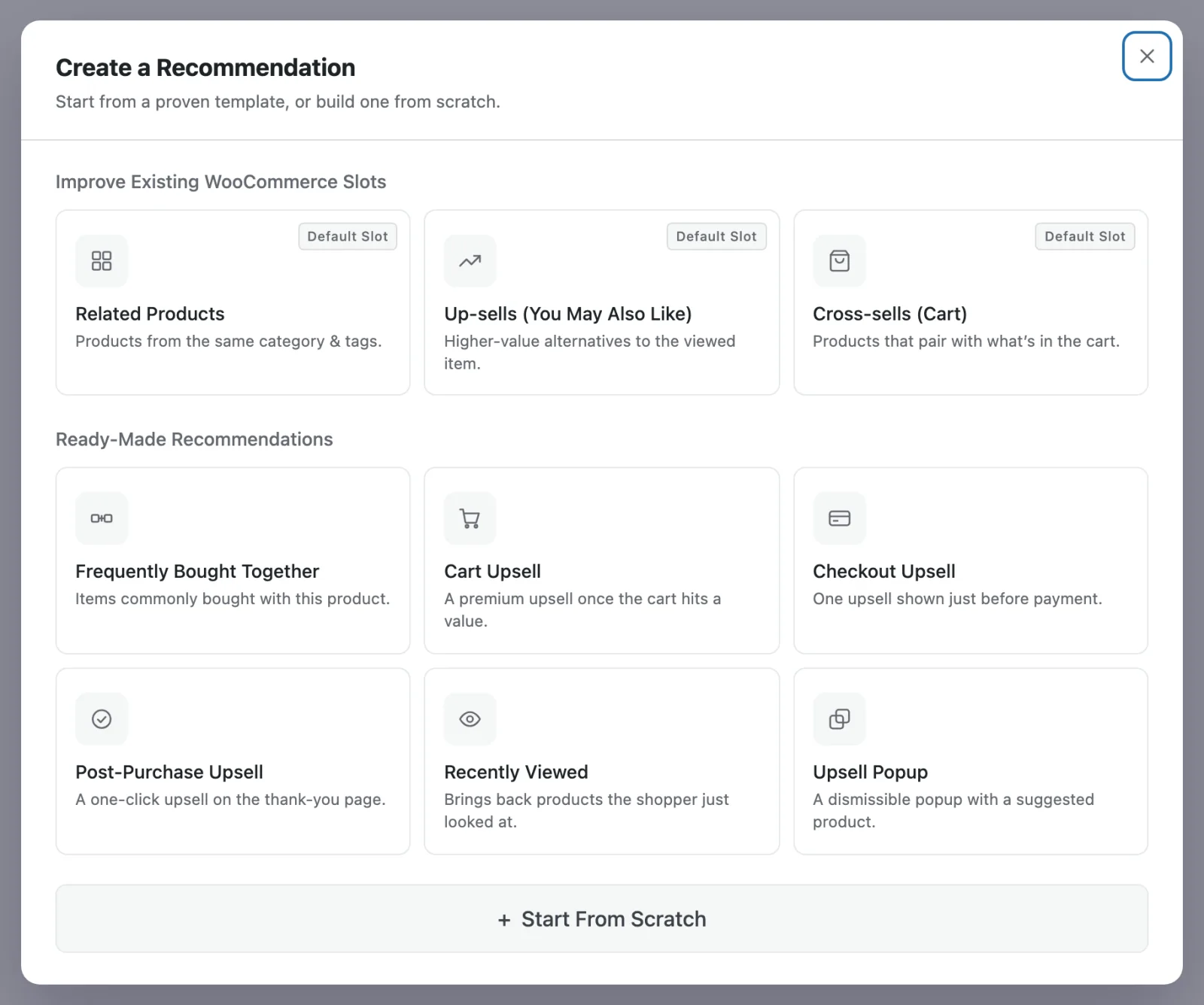
Step 2: Pick "Related Products"
Under Improve Existing WooCommerce Slots, choose Related Products (Products from the same category & tags.).
That one click fills in three things for you:
- What to show: products from the same category and tags as the product the shopper is looking at.
- Where to show it: on the product page, after the tabs.
- How it looks: a grid, headed "Related products".
A template only pre-fills the builder. Everything it sets is an ordinary setting you can change, and the Recommendation isn't special in any way afterwards.
Why start with this template
It covers a spot WooCommerce already fills, so you can compare like for like: the same place on the page, with your rules instead of WooCommerce's. Nothing new appears anywhere a shopper wouldn't expect it.
Step 3: Look over the three steps
The builder opens with the template applied. It has three tabs across the top, Setup, Design and Display Conditions, and a Live Preview on the right. You don't need to change anything, but it's worth seeing what the template set up, because this is the whole plugin in one screen:
| Tab | What the template set |
|---|---|
| Setup | Show On: Product. Position On Page: Product page · After tabs. How Products Are Chosen: Rules. Filters on automatic: Same Category & Tags. |
| Design | Display Style: Grid. Heading Shown to Shoppers: "Related products". |
| Display Conditions | Nothing: No conditions yet — this block is always shown. |
The Live Preview is drawn by the same engine as your storefront, in your theme's own styles. If your store has no published product to preview against yet, it uses sample data and tells you so. If the preview is empty, the storefront will be empty too, and that's exactly what you want a preview to tell you.
The one thing worth editing now is Heading Shown to Shoppers on the Design tab. It's the line shoppers actually read.
You can move between the tabs in any order. Continue and Back at the bottom of each tab step you through them.
Step 4: Save it
Click Save Changes in the top bar. On the last tab, the same button is at the bottom too.
There's no separate publish step. Saving a new Recommendation makes it live straight away, and you'll see Recommendation created — storefront updated. If something's missing, the plugin doesn't put a broken block on your product pages. It saves the Recommendation as Inactive and tells you what to fix. Fix it, save again, then switch it on from All Recommendations.

Step 5: Check your storefront
Open any product page. Below the tabs you should see your block, with your heading, showing products from the same category.
Can't see it? Work through these in order. They cover almost every case:
- Does the Live Preview show products? If not, the problem is the filters, not the position. Widen them on the Setup tab.
- Is it switched on? On All Recommendations, its status should read Active, not Inactive.
- Are you looking at a cached page? Open the product in a private window.
- Is WooCommerce's own related-products section still showing too? That's expected. See the next step.
For anything else, see Troubleshooting.
Step 6 (optional): Hide WooCommerce's own related products
Right now you probably have two boxes doing the same job: WooCommerce's and yours. To hide WooCommerce's:
- Go to Recommend → Settings → General.
- Under WooCommerce Default Showcase, turn on Hide Related Products.
This hides WooCommerce's section everywhere it appears, so only your block is left. There are matching switches for Hide Up-sell Products and Hide Cross-sell Products. All three are off until you turn them on. You can read more in Replacing Woo Slots.
What "done" looks like
- A block on the real product page, not just in the preview.
- Products that make sense next to the one being viewed.
- One related-products row on the page, not two.
Where to go next
- Core Concepts: Recommendation, Show On, Position, Display, and the difference between filters and display conditions, which saves the most time.
- The Recommendation Manager: read this before you build your third Recommendation. It's how you keep blocks from fighting each other, and it's often why one doesn't appear.
- Starting Templates: the other starting points.
- Best Practices: the handful of settings worth getting right before you scale up.