

Display Conditions
Optional rules that decide whether the block appears at all — on which device, for which visitors, above what cart total. Device is free; the other conditions are Pro.
Setup chose the products and the spot. Design chose the look. Display Conditions answers one more question: should this block appear for this shopper, right now?
Most Recommendations don't need any. With no conditions, the block always shows (subject to your store-wide Recommendation Manager settings).
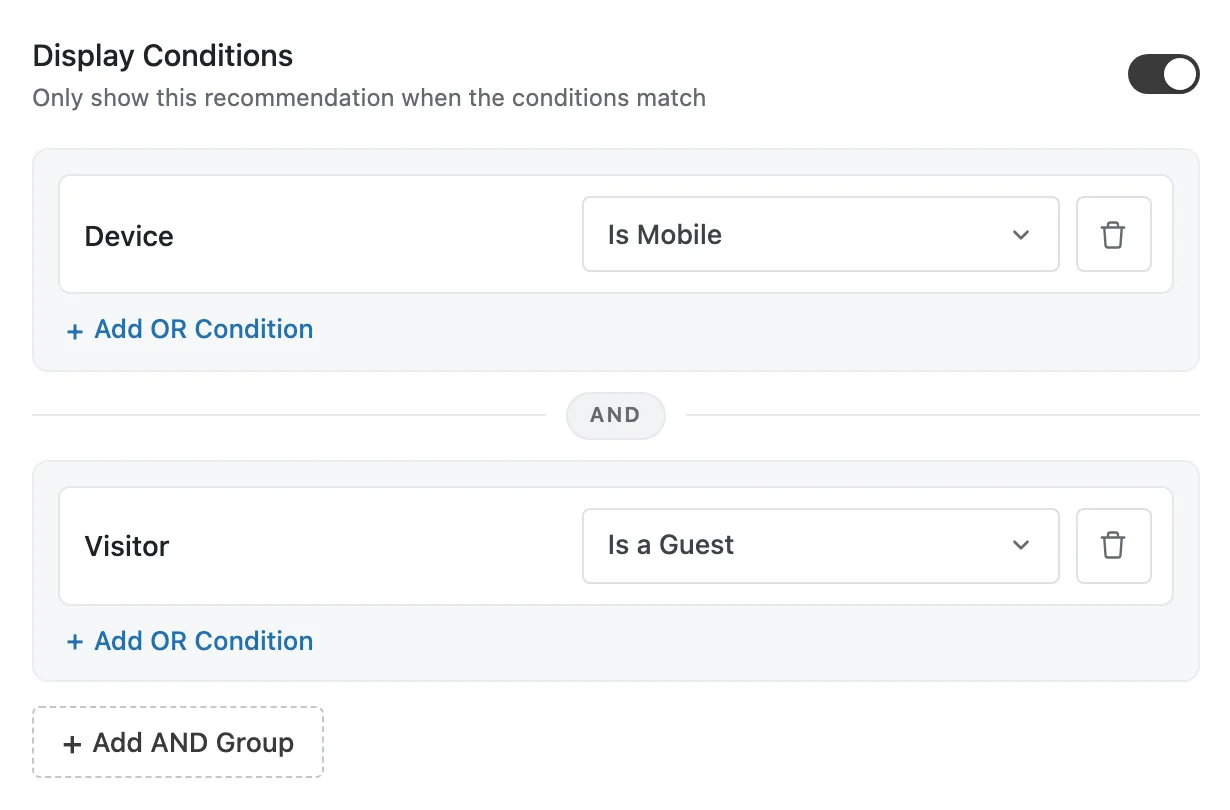
Turning conditions on
The tab opens with one switch: Display Conditions — "Only show this recommendation when the conditions match." Turn it on and you'll see "No conditions yet — this block is always shown." and an Add Condition button.
Turn the switch off and your conditions are hidden; they're deleted when you save with the switch still off. Turn it back on before saving and they're all still there.
The five condition types
| Condition | Choices | Starts at | Available for | Tier |
|---|---|---|---|---|
| Device | Is Mobile · Is Desktop · Is Tablet | Is Mobile | Every page | Free |
| Cart Total (Order Total on Thank You) | Is Over · Is Under · Is Between | Is Over 40 | Product, Cart, Thank You | Pro |
| Visitor | Is a Guest · Is Returning · Is Logged In | Is a Guest | Every page | Pro |
| Schedule | This Week · On Weekends · On Weekdays · Custom Dates | This Week | Every page | Pro |
| Viewing Category | Your store's categories — pick one or more | (empty) | Product only | Pro |
Some details:
- Amounts are in your store's base currency. Is Between starts at 40 to 100.
- Custom Dates gives you a First day and a Last day. Both days are included, and dates follow your store's timezone (the one set in WordPress → Settings → General).
- Viewing Category matches if the product being viewed is in any of the categories you pick.
- Conditions that don't fit your page aren't offered. On a Category or Anywhere Recommendation, for example, you won't see Cart Total.
- Each condition type can be used once per Recommendation. To match more than one value — say, two categories — put them in the same row.
In the free plugin, the Pro conditions show with a Pro badge; clicking one explains what Pro adds.
How conditions combine
Conditions are arranged in groups, the same way filters are:
- Between groups: AND. The block shows only if every group passes. Click Add AND Group to add one.
- Inside a group: OR. Any one condition in the group is enough. Click Add OR Condition under a group. Pro
The block renders only if its conditions pass and it gets through the Recommendation Manager. Conditions are the first gate, not the only one.
An empty Viewing Category never matches
Add a Viewing Category row and leave it empty and you'll see: "A category condition with nothing selected never matches, so this block would not show. Choose at least one category." The plugin treats a blank as unfinished rather than as "any category" — a condition that matches everything is a condition you didn't mean to add.
Checked on the server, and it fails closed
Two things you can rely on:
- Conditions are checked on your server for every page view, from the exact settings you chose. Cart Total Is Under 40 always means under.
- If a condition can't be checked, the block doesn't show. If something's wrong with a condition — say it uses a Pro type and Pro is no longer active — the plugin hides the block rather than guessing. A missing block is a much smaller problem than a members-only offer shown to everyone.
Worked examples
A cart upsell that only appears for committed shoppers Pro
Cart Total Is Over 75A mobile-only block (free)
Device Is MobileA mobile offer for returning customers Pro
Device    Is Mobile
  AND
Visitor   Is Returning
A weekend promotion on coffee and tea pages Pro
Schedule           On Weekends
  AND
Viewing Category   Coffee, Tea
Guests, or anyone with a big cart Pro
Visitor      Is a Guest
  OR
Cart Total   Is Over   100
Conditions only ever narrow
Every condition you add makes the block appear less often. If a block isn't showing, check whether a condition simply isn't true for you right now — you're probably logged in, on a desktop, with an empty cart.
Conditions vs filters
This trips people up, so it's worth saying plainly:
- "Only show products under 50" → a Price filter on Setup.
- "Only show this block to shoppers with 50 in their cart" → a Cart Total condition here.
Filters decide what's inside the block. Conditions decide whether the block appears at all. Core Concepts has a side-by-side table.
In the free plugin
You get the Device condition, so you can show a block only on mobile, only on desktop, or only on tablets. Every condition row is its own group, so if you add more than one they all have to pass.
Some of what people reach for other conditions to do is possible for free anyway:
- "Only on certain pages" — place it with the shortcode or block on just those pages instead of a site-wide position.
- "Only in one category" — set Show On to Category.
- "Don't overwhelm the page" — use the blocks-per-page limit in the Recommendation Manager.
Next
- Recommendation Manager — the second gate every block passes.
- The Builder — saving what you've built.
- Troubleshooting — when a block doesn't appear.