

Installation & Activation
Install Shaped Recommend, add Pro on top if you have it, and know what changes the moment you click Activate.
Shaped Recommend comes as two plugins: the free base plugin, and a Pro add-on that sits on top of it. Install them in that order. Pro won't activate without Free, because Free is where the engine lives.
Step 1: Make sure WooCommerce is active
Shaped Recommend is a WooCommerce extension. It needs WooCommerce 7.0 or newer, installed and active. If WooCommerce isn't active, WordPress won't let you activate Shaped Recommend and tells you why. Nothing breaks.
For the full version list, see Requirements.
Step 2: Install Shaped Recommend (Free)
From a zip file:
- Go to Plugins → Add New Plugin → Upload Plugin.
- Choose
shaped-recommend.zipand click Install Now. - Click Activate Plugin.
From the WordPress.org plugin directory (if you're installing from there instead):
- Go to Plugins → Add New Plugin.
- Search for Shaped Recommend.
- Click Install Now, then Activate.
Don't rename the folder
The plugin folder must stay named exactly shaped-recommend. WordPress uses the folder name to check that Free is there for Pro. If you rename it, Pro thinks Free is missing.
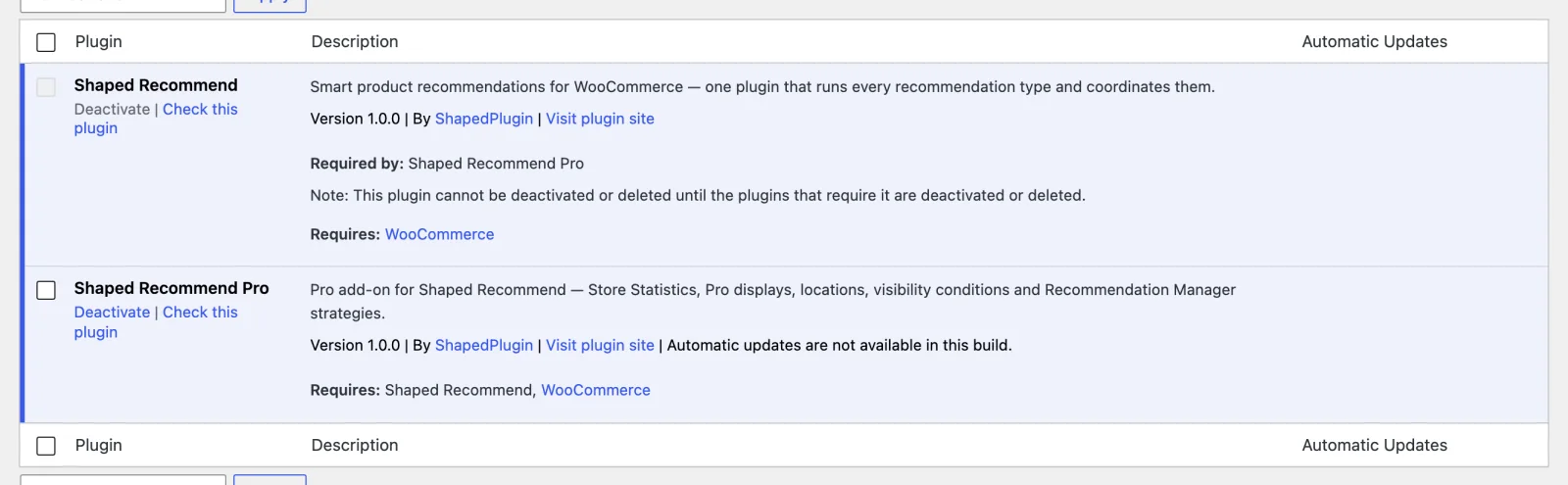
Step 3: Install Shaped Recommend Pro (optional)
Use the zip route again. This time the file is shaped-recommend-pro.zip and the folder must be named exactly shaped-recommend-pro. Install and activate it after Free.
If you try to activate Pro first, WordPress stops you and says Shaped Recommend is required. Pro declares Free as a required plugin, so this gets caught before any of Pro's code runs.
Activating Pro unlocks the Pro features straight away. Then go to Recommend → Settings → License, paste your license key and click Activate. The key is what gets you updates and support. It isn't what switches the features on. For more, see Free vs Pro → Licensing.
What activation does
This explains the few things that change right away:
- Creates three database tables:
sprcm_events,sprcm_event_rollupsandsprcm_affinity. All three belong to Free, even the affinity table that Pro fills. - Grants two capabilities,
sprcm_manage_recommendationsandsprcm_view_analytics, to Administrator and Shop manager. - Adds a Recommend menu to the WordPress sidebar, just below WooCommerce's own menus.
- Schedules two nightly jobs, an analytics rollup and an event purge. Pro adds its statistics mining.
- Changes nothing on your storefront. You don't have any Recommendations yet, so no blocks render and no extra files load. WooCommerce's own related products, up-sells and cross-sells carry on exactly as before.
Activation is per site. On a multisite network, activate it on each site that sells. There's no network-wide mode, and a network activation shows a notice saying so.
Finding the plugin afterwards
Look for Recommend in the WordPress sidebar (the full product name, Shaped Recommend, appears on the screens themselves). It has four entries:
| Menu item | What it opens |
|---|---|
| Recommend (the top-level item) | The Dashboard. |
| All Recommendations | The list screen, where you switch Recommendations on and off and (in Pro) drag them into priority order. |
| New Recommend | The Create a Recommendation window: starting templates plus Start From Scratch. Every "create" button in the plugin opens the same window. |
| Analytics | The Analytics screen. |
| Settings | Settings: General, Recommendation Manager, Export / Import, License and Advanced. |
The Dashboard doesn't get its own row. You reach it by clicking Recommend itself.
Your first visit
On a fresh install, the Dashboard is a single welcome panel, Recommend What Shoppers Want Next, with a Create a Recommendation button. Click it and you're in the template picker. From there, the Quick Start gets your first block live in about a minute.
Every screen also has a Get Help menu in its header, with Documentation, Video Tutorials and Contact Support.
Moving a store, or setting up a second one
Your Recommendations travel as a JSON file. On the source store, go to Settings → Export / Import, export everything or just a selection, then import the file on the new store. License details never go into an export, because a license belongs to the site, not the configuration. See the Settings page for details.
Updating
Update Free and Pro like any other plugin. The one rule: update Free first, or update both together. When Pro starts up, it checks Free's version. If Free is older than Pro needs, Pro goes dormant and shows a notice. You don't lose anything. Update Free and Pro starts working again.
Pro updates come through the normal Plugins screen once your license is active.
Removing it
Deactivating either plugin stops it from showing anything and leaves your data alone.
Deleting the plugin also keeps your data by default. Your Recommendations, analytics and settings are only removed if you first turn on Settings → Advanced → Clean-up Data on Deletion. It's off unless you switch it on, and it asks you to confirm when you do. Uninstalling & Data covers exactly what goes and what stays.
Next
- Quick Start: a live Recommendation in about a minute.
- Core Concepts: the vocabulary the whole plugin uses.