

The Recommendation Manager
The part of the plugin that decides which recommendations actually show for a shopper on a page. It's why your blocks don't trip over each other, and it's usually the answer when one doesn't appear.
Install three recommendation plugins and you get three plugins that don't know about each other. The same hoodie turns up in the related-products box, the up-sell strip and the cart cross-sells, in three different styles, and the shopper stops looking at any of them.
Shaped Recommend runs every recommendation type itself, so one part of it can look at the whole page at once and decide what shows. That's the Recommendation Manager. Every block reports to it, and nothing gets past it: not pinned products, not shortcodes, not the editor block.
Its controls are at Recommend → Settings → Recommendation Manager.
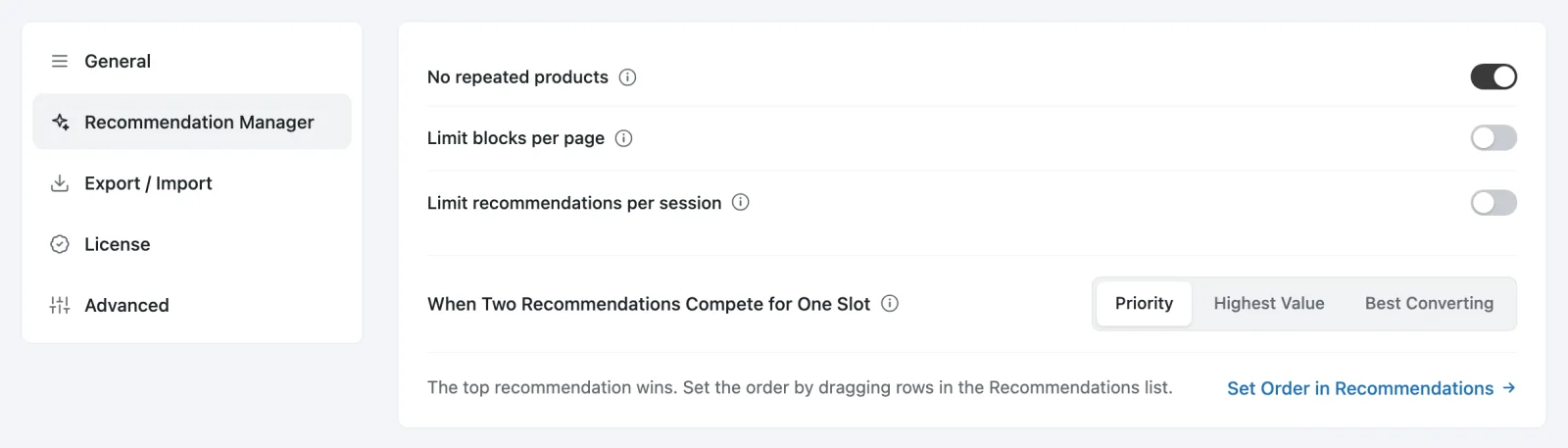
Out of the box, nothing is limited
On a new store every switch on this tab is off. Every eligible recommendation shows, and two blocks on one page can show the same product. That's deliberate: a limit is something you decide your store needs, so the plugin doesn't decide it for you.
Most stores will want to turn at least No repeated products on once they have more than one recommendation on the same page. The rest of this page explains what each switch does and when it's worth turning on.
The controls
| Control | Default | Range | Tier |
|---|---|---|---|
| No repeated products | Off | on / off | Free |
| Limit blocks per page | Off | on / off | Free |
| ↳ Blocks per page | 5 | 1–10 | Free |
| Limit recommendations per session | Off | on / off | Free |
| ↳ Recommendations per session | 5 | 2–10 | Free |
| When Two Recommendations Compete for One Slot | Priority | Priority · Highest Value · Best Converting | Pro |
| Priority order | The order you created them in | drag rows on All Recommendations | Pro |
The two numbers only appear once their switch is on. Turn a limit off and the plugin applies no limit of that kind at all; turn it back on and your last number comes back with it.
Every change saves straight away and shows "Recommendation Manager settings saved — storefront refreshed". The very next page a shopper loads follows the new settings.
On a Free store the competition controls are visible but covered by a Priority & Conflict Rules Are Pro panel. You can see what's there, but you can't select it.
No repeated products
"Never show the same product twice on one page."
Turn this on when you have more than one recommendation on the same page. Without it, a product page with a related-products grid and an up-sell strip can show the same hoodie in both.
How it works:
- It's about one page. Blocks claim products in priority order. The first block to show a product keeps it, and the blocks after it skip that product and show the next ones in their own list.
- It doesn't follow the shopper between pages. A product shown on one page can appear again on the next page they visit.
- There's no "fill the gap" option. If every product a block wanted is already taken by blocks above it, that block doesn't show at all. On a small catalogue that can mean a lower-priority block disappears. See Tuning it for what to do about that.
Blocks per page
"Off shows every eligible recommendation. Turn on to cap how many render."
Turn on Limit blocks per page and set how many recommendation blocks one page may show. The highest-priority blocks get the places; the rest are held back.
This is the setting that stops a page turning into a wall of offers. A shopper shown two good recommendations usually does better than one shown six. If you have several recommendations that can land on the same page type, this is worth turning on, and 2 or 3 is a sensible place to start.
When this limit holds a block back, the recommendation shows a Limit reached chip on All Recommendations. Hover it and you get the reason in plain words, for example "Your limit of 2 recommendation blocks per page held this back on a recent page view." The chip clears on its own the next time that block actually shows, and it only looks back over the last day.
Recommendations per session
"Cap how many recommendation blocks a shopper sees per visit."
Turn on Limit recommendations per session to set a budget for one visit. Once a shopper has been shown that many recommendation blocks, they see no more until their next visit.
It counts every kind of block: blocks on the page, popups, all of them. It's protection against offer fatigue, because a shopper browsing fifteen products shouldn't be shown fifteen up-sells.
This one also shows the Limit reached chip when it holds a block back, with its own reason: "Your limit of 5 offers per visit held this back for a recent shopper."
Products per block
There's no control for this. The plugin has a fixed ceiling of 20 products per block, which is the same as the top of the Products to Show slider in the Design step. Whatever you set there, up to 20, is what you get. The ceiling only exists so that nothing can get round it.
When two recommendations compete Pro
"When Two Recommendations Compete for One Slot"
Two recommendations placed at the same spot (say, both at Product page · After tabs) can't both show there. One wins, and the other is held back rather than stacked underneath.
The winner is decided by priority: the recommendation higher in your list wins. The tab says "The top recommendation wins. Set the order by dragging rows in the Recommendations list." and links you there with Set Order in Recommendations.
- On Pro, you set that order by dragging rows on All Recommendations. Each row's menu also has Move up and Move down if you'd rather not drag.
- On Free, the order is the order you created your recommendations in, oldest first, and you can't change it. A new recommendation always joins at the bottom, so it never pushes an existing one out of its spot.
Highest Value and Best Converting don't change anything yet
The control offers two more choices. Its tooltip describes the plan: Highest Value would rank by revenue per view and Best Converting by conversions per view, over the last 30 days. Neither is built yet. You can select and save them on Pro, but the plugin still picks the winner by priority. Use Priority and set the order on All Recommendations for now. See Free vs Pro.
Popups don't compete for a spot, because they aren't placed at one. They're still counted against both limits above.
The order things are checked in
Every page runs the same checks, in the same order, in one place. Your storefront, the builder's Live Preview and the editor block's preview all use the same code, which is why the preview can be trusted.
For every recommendation placed on the current page:
- Pro check. If the recommendation uses a Pro feature and Pro isn't active, it's held back. Its settings are never changed or downgraded, so reactivating Pro brings it straight back.
- Display conditions. Each condition from the Display Conditions step is checked on the server. A condition the plugin can't evaluate counts as not met, so it fails closed.
- Products to show. If the filters match no products, the block is held back.
- One winner per spot. Where two recommendations share a location, the higher-priority one wins.
- Your limits. Highest priority first: a popup the shopper already closed today is skipped, then Blocks per page, then Recommendations per session, if they're on.
- No repeated products. If it's on, products already taken by a block above are removed. A block left with nothing is held back.
- The display's minimum. A bundle box needs at least two products. A block that can't meet its display's minimum is held back rather than shown half-built.
That last point is the promise that matters on the storefront: a block that would be empty or broken doesn't show at all. There's no empty box, no heading with nothing under it, and no error. It just isn't there.
Why a block was held back
Every time the Recommendation Manager holds a block back, it records why, using one of seven reasons:
| Reason | Means |
|---|---|
tier_locked | It uses a Pro feature and Pro isn't active on this store. |
visibility_not_met | One of its display conditions wasn't true for this shopper. |
empty_source | No product matched, or too few were left for the display (a bundle of one). |
lost_slot | Another recommendation won the same location. |
capped_blocks | Blocks per page was already used up on this page. |
capped_session | Recommendations per session was already used up for this visit. |
deduped_empty | Every product it would show was already shown by a block above it. |
You don't get a full report of these in this release. Three things in the admin read them:
- the Limit reached chip on All Recommendations, for the two limit reasons;
- the builder's Live Preview, which names
lost_slot,deduped_empty,empty_sourceandtier_lockedwhile you edit (it doesn't check display conditions or limits, because those depend on the shopper); - the list of recommendations that stopped showing when Pro was deactivated, which comes from the
tier_lockedrecords.
Sessions
A session is one visit, and it ends after 30 minutes without activity.
Recommendations per session counts within one session and resets on the shopper's next visit. A limit you set for a visit never turns into a lifetime limit for that shopper.
Activity keeps a visit open, so browsing more doesn't get round the limit. Only leaving and coming back does, and by then it's a new visit anyway.
"Why isn't my block showing?"
Work through these in order. The first few take seconds to rule out.
- It's inactive, or has no placement. Check its status on All Recommendations: only Active recommendations show. A recommendation saved with a problem is saved as inactive ("Saved as inactive — to activate, fix this: …"). A recommendation with no placement can't show anywhere, and the builder says so.
- You're on the wrong page for its location. A Product page location only shows on product pages, a Cart location only on the cart, and so on. A shortcode or editor block only shows where you've actually put it, and only for a recommendation whose location is that custom placement.
- The theme or page doesn't run that location's hook. Block themes and heavily customised themes may skip WooCommerce's classic hooks. See Locations.
- It needs Pro and Pro isn't active (
tier_locked). - A display condition isn't true for you (
visibility_not_met). You may be logged in, on desktop, or have an empty cart. Try the condition's opposite, or test as the shopper it's meant for. - No products matched (
empty_source). Open the builder: if the Live Preview is empty, the filters are too narrow. A bundle box also needs at least two products, and only simple products count towards it. - It lost its spot (
lost_slot) to a higher-priority recommendation at the same location. - A limit held it back (
capped_blocksorcapped_session). Look for the Limit reached chip. For the session limit, a private browser window gives you a fresh visit. - Its products were all shown above it (
deduped_empty), with No repeated products on. - You closed it. A popup you've closed stays closed for you for the rest of the day.
The builder's Live Preview names several of these while you're editing, for example "Another placement wins this location.", "Everything this would show is already shown by an earlier placement on the page." and "This placement uses a Pro feature that is not active on this store." It's the fastest way to catch them before you publish.
The symptom-first version of this list is in Troubleshooting.
Tuning it
Strict limits and a small catalogue don't always mix. If your store has forty products and a recommendation that can only ever pick from a handful of them, No repeated products can leave a lower-priority block with nothing to show. That's correct behaviour, but it isn't helpful.
These fixes are listed roughly in the order worth trying:
- Widen what the block can pick from. Use automatic filters, or a broader category. This is nearly always the real fix.
- Change the priority order Pro so the block you care about most picks first.
- Raise or turn off the session limit if five blocks per visit is too few for how much your shoppers browse.
- Raise Blocks per page. Do this last. Fewer, better offers is the point of the limit.
- Turn off No repeated products if you'd genuinely rather show a repeat than show nothing.
Next
- Settings: where these controls live, and the other tabs.
- All Recommendations: the status chips and, on Pro, the priority order.
- Best Practices: sensible values before you scale up.