

The Builder
One full-screen workspace: three tabs of settings on the left, a live preview of the block on the right, and a single Save button. Here's how it's laid out and how saving works.
Everything about a Recommendation is set on one screen. You decide where it shows and which products it picks, then how it looks, then (optionally) who sees it. There's no separate "placements" page and nothing hidden in another menu.
The builder takes over the whole admin area and hides the plugin's usual header and tabs, so the preview has room to breathe. You reach it by creating a Recommendation from a template or from scratch, or by opening one from Recommend → All Recommendations.
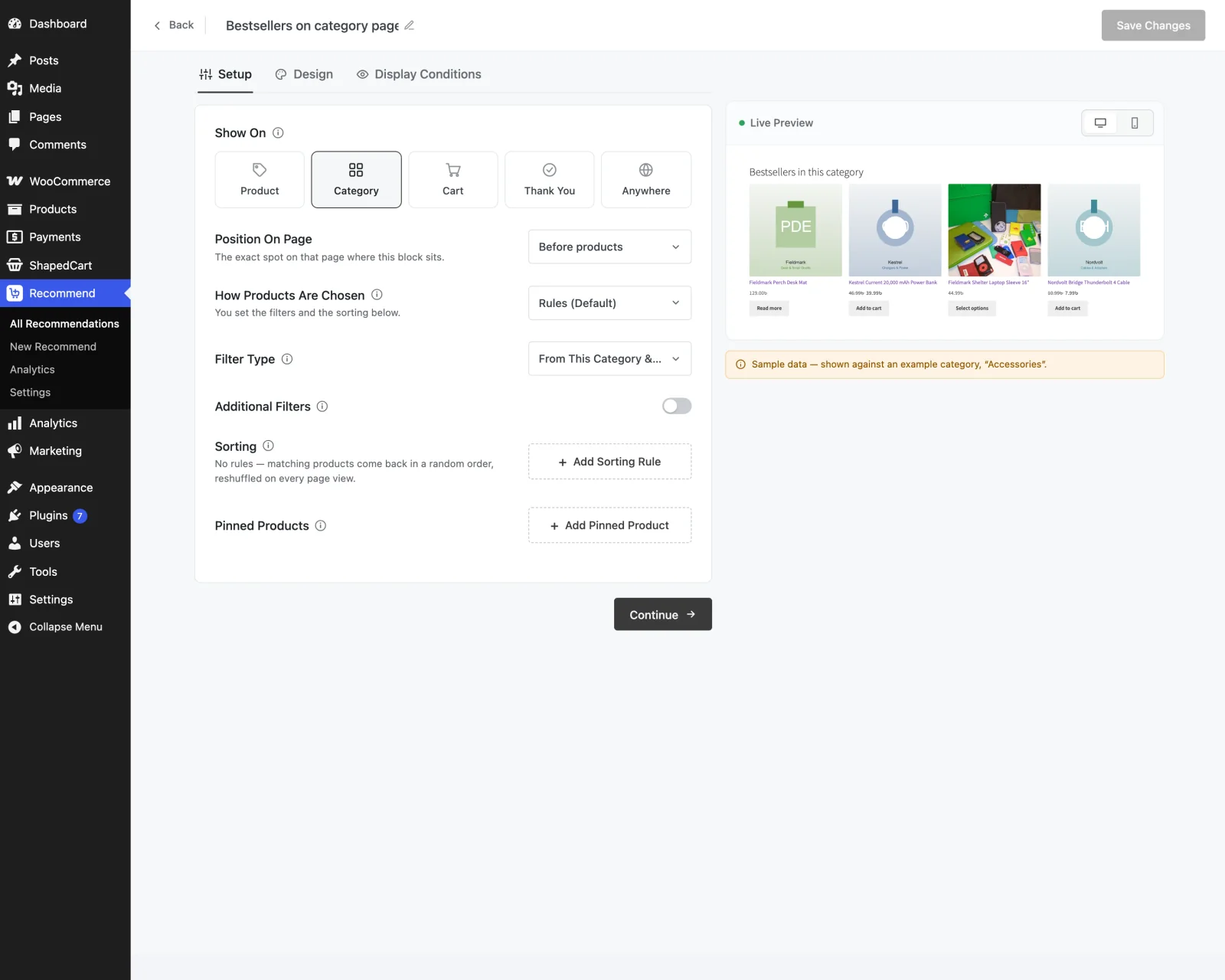
The top bar
| Control | What it does |
|---|---|
| Back | Returns to where you came from. If you have unsaved changes, it asks first — see Leaving with unsaved changes. |
| Name | Always editable — click and type. Leave it empty and it saves as "Untitled recommendation". Shoppers never see this name; it's for your list. |
| Unsaved changes | A small chip that appears as soon as you change anything. |
| Save Changes | The only save button. It's faded until there's something to save. See Saving. |
There's no "View storefront" button. The preview pane is the storefront view — it's drawn with your theme's own styles.
The three tabs
The tabs run across the top of the left pane. They're not a wizard: you can jump to any tab at any time, and nothing blocks you from moving on. Problems show up inline, where they are. Under each tab there's a Back and a Continue button if you'd rather walk through in order; on the last tab, Continue becomes Save Changes.
| Tab | What you decide | Page |
|---|---|---|
| Setup | Which page it shows on (Show On), exactly where on that page (Position On Page), how products are picked, filters, sorting and pinned products | Setup |
| Design | How it looks: display style, heading, columns, how many products — and for a popup, what opens it | Design |
| Display Conditions | Optional rules for when the block is allowed to appear — device, cart total, visitor type and so on | Display Conditions |
One Recommendation, one placement
A placement is the block itself as it appears on a page: one position, one display style, one set of conditions. Every Recommendation you create has exactly one. If you want the same product logic in two places — say, on the product page and in the cart — create a second Recommendation (the templates make that quick).
If you see a "Which placement" selector
Recommendations brought in from an older version, or by import, can hold more than one placement. The builder still opens them, adds a Which placement selector to each tab, and lets you remove the ones you don't want — but there's no button to add more.
The Live Preview
The right-hand pane, titled Live Preview, redraws a moment after every change (you'll see "Updating…"). Switch between Desktop and Mobile with the two icons in its header — the mobile frame is a real narrow screen, so your mobile column count is what you'll see.
The important thing about it: it's rendered by the same engine as your storefront. Not a mock-up — the same product selection, the same filters, the same templates, the same limits, drawn in a frame that loads your theme's stylesheet. If the preview shows three products, the storefront shows three products.
That has some honest consequences.
It tells you what it previewed against
A Product-page Recommendation has to be previewed against some product. The note under the frame names it:
Sample data — shown against an example product, "Blue Hoodie". On the storefront this resolves against whatever product the shopper is viewing.
Category previews use a real category from your store, Cart and Thank You previews use an example cart or order, and an Anywhere Recommendation says "Previewing against your whole catalogue, which is what this recommendation draws from." If your store has nothing suitable yet (no published products, no categories), the note says that instead.
It shows the real limits
If something caps how many products this block can show (a single-offer card shows exactly one, for example), the preview shows the capped number and says so: "Your store's Recommendation Manager caps products per block, so the preview shows the capped number." It won't flatter you with more than shoppers will see.
It tells you when a block wouldn't show
When the block would render nothing, the frame says why rather than going blank:
| Message | What it means |
|---|---|
| "Nothing matches yet — no product satisfies these filters against the sample data." | Your filters are too narrow for the sample — loosen them, or check against a different product. |
| "Everything this would show is already shown by an earlier placement on the page." | Another block on the same page already shows these products, and you've told the plugin not to repeat products (No repeated products in Settings). See Recommendation Manager. |
| "Another placement wins this location." | Another Recommendation targets the same spot, and only one block renders per spot. See Recommendation Manager. |
| "This placement uses a Pro feature that is not active on this store." | Something in it needs Shaped Recommend Pro. |
| "This placement renders nothing with the current configuration." | The catch-all — usually a display that needs more products than it can find (a bundle box needs at least two). |
If a refresh fails — a dropped connection, say — you keep the last good render with the note "Couldn't refresh the preview just now — this is the last good render." If the preview frame itself can't load (usually because the page has been open a very long time), it tells you to reload the page.
Saving
There's one button: Save Changes. What it does depends on whether the Recommendation already exists.
A new Recommendation goes live when you save it
When you save a brand-new Recommendation, the plugin tries to make it Active straight away — there's no separate draft step. You'll see "Recommendation created — storefront updated".
If it isn't complete enough to show on the storefront yet, it's still saved, but as Inactive, and the message tells you the first thing to fix: "Saved as inactive — to activate, fix this: …". Anything else that needs attention appears in a yellow notice above the settings.
Want to build it without publishing?
Save it once, then switch it off from All Recommendations. Turning Recommendations on and off lives on the list, not in the builder.
Editing keeps the status it already has
Saving an existing Recommendation never changes whether it's Active or Inactive behind your back — an Active one stays Active and updates on the storefront immediately; an Inactive one stays Inactive.
The builder also stays open after a save. Saving isn't leaving: you can keep tweaking and save again.
When an edit can't go live
If you change an Active Recommendation in a way that means it can no longer show (for example, you removed the last thing it needed), saving would have to take it off your storefront. The plugin asks first:
This change can't go live — …Save it as inactive, taking it off your storefront?
Choose Save as inactive to keep your edits and switch it off, or Keep editing to fix it first.
Changing Show On on an Active Recommendation
Show On decides what the Recommendation reads (a product, a cart, an order…), so changing it re-decides what it recommends. On an Active Recommendation the builder confirms first — "Change what this recommendation reads?" — with Change where it shows or Keep it as it is. Any settings that don't make sense on the new page are removed, and a message tells you how many. More on Setup.
Leaving with unsaved changes
Press Back, click away in the WordPress sidebar, or use your browser's back button with unsaved changes, and you're asked "Save changes before leaving?" with three choices:
- Discard — leave without saving.
- Keep editing — stay where you are.
- Save & leave — the same save as the button, then out.
The builder never saves silently, and never publishes silently.
Switches that remove rows when you save
Two sections have an on/off switch: Additional Filters (on Setup) and Display Conditions. Turning a switch off hides its rows but keeps them until you save — flip it back on and they're still there. Save with the switch off and those rows are deleted. The preview always shows what would be saved.
Keyboard and accessibility
The builder works from the keyboard: tab through the controls, use the arrow keys to move between Show On pages, and reorder pinned products with Move up / Move down buttons rather than only by dragging. Every control has a label for screen readers.
What happens when you save an Active Recommendation
The storefront doesn't read your builder settings directly. Saving an Active Recommendation builds a checked, published copy of everything the storefront needs, and your shop reads that. That's why:
- unfinished work in the builder can't leak onto a product page before you save,
- a save takes effect on the very next page load,
- and an Inactive Recommendation costs your storefront nothing.
Next
- Setup — where it shows and which products it picks.
- Design — how it looks.
- Display Conditions — who sees it, and when.